Christmas PFP
Christmas WhatsApp DP Photo and Privacy Guide
Set a Christmas WhatsApp DP using the documented Web upload route. Check the round crop, review profile-photo visibility and keep your everyday picture.
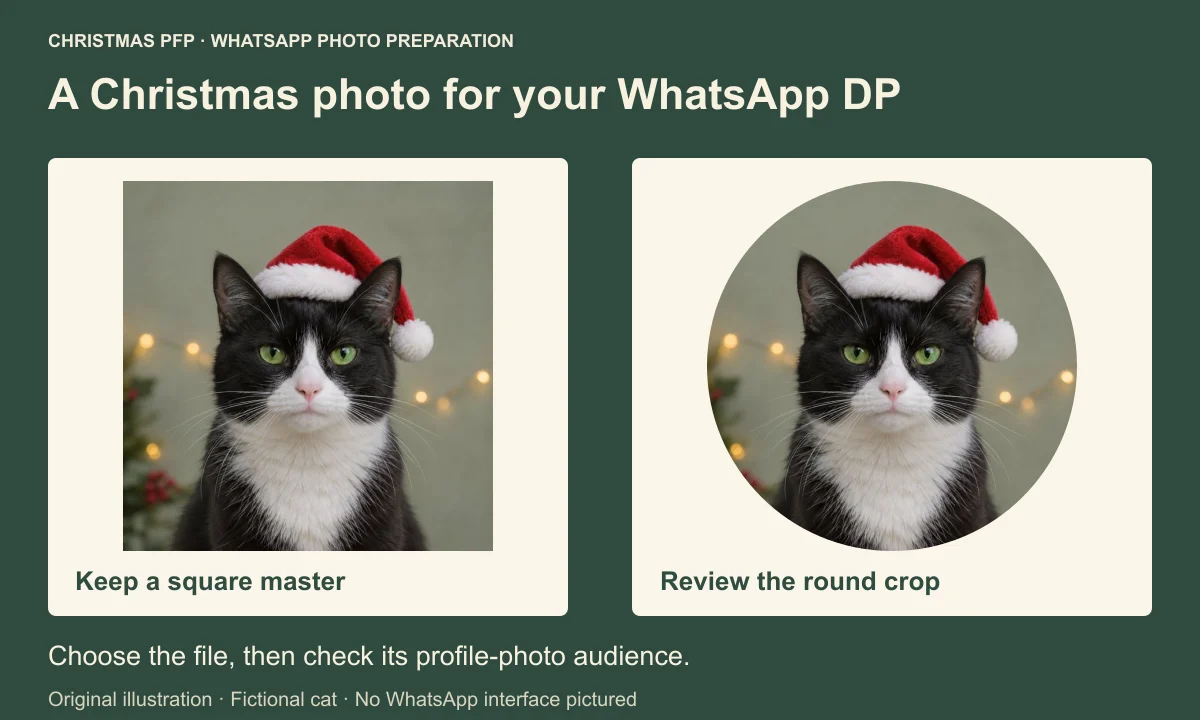
Choose a Christmas photo for your WhatsApp DP, save the file, and review who should be able to see it before replacing your everyday picture. The profile image can appear beside your messages, so check the small version as well as the larger preview.
The Web instructions below follow WhatsApp's official Help Center, checked on November 16, 2026. Our browser was not linked to a WhatsApp account, so these are documented steps rather than an account test. The cat is a fictional editorial illustration, and the preparation diagrams do not show a real WhatsApp interface.
Choose the profile photo field
A photo saved from Christmas PFP is an ordinary image file that you can select for your WhatsApp profile. WhatsApp also has its own avatar feature. Its current profile help says an avatar can sit alongside a profile picture, so check which part of your profile you are editing.
Status has separate audience controls. Posting a seasonal image there is a different action from replacing the picture associated with your profile. Choose the profile-photo control when the Christmas image should become your DP.
WhatsApp's help also describes a native AI-photo option with limited availability. That feature belongs to WhatsApp. A file made on Christmas PFP follows the normal upload route and does not require access to WhatsApp's native AI feature.
Prepare the file before opening WhatsApp
Keep a copy of your everyday profile photo, then give the seasonal file a name you can recognize, such as christmas-whatsapp-photo.png. Having both files makes it easier to select the intended picture now and change back later.
Start with a square master that shows the complete head and the important details near its edges. The fictional cat in our illustration has upright ears, long white whiskers and a small hat. A round crop needs room for those features as well as the face.
Compare the white muzzle with the darker fur and check the hat's full pompom. The diagram shows a square file and a round study using the same picture. It illustrates the crop you should inspect; it is not a WhatsApp upload-size specification or a screenshot of an accepted upload.
The circle crop guide explains which corners disappear. For a pet picture, the cat ears and whiskers guide helps you inspect the details you want to keep.
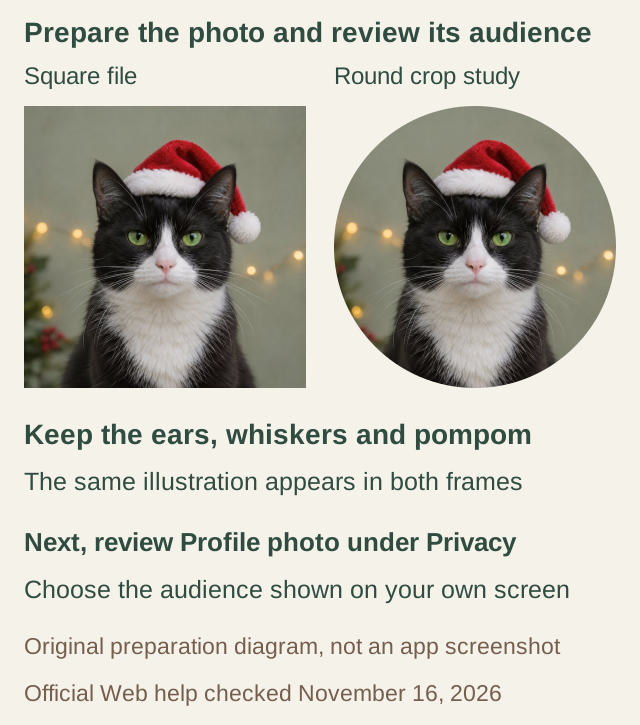
Original preparation illustration using a fictional cat. It shows image framing, not an account interface or a tested WhatsApp upload.
Follow WhatsApp's documented Web upload route
According to the official profile-editing help, begin with your profile photo and open Profile. Select the existing photo. If you have no picture, the help describes hovering over its icon and choosing Edit.
Choose Upload photo, select the saved Christmas file, and use the displayed confirmation control. Review any preview and crop offered by your screen before finishing.
For a phone, use the Android or iOS tab in that same help article. The steps above describe the Web help we checked. Follow the labels shown for your own platform, particularly if the layout has changed since you last updated your photo.
Keep the master file after uploading. A small copy displayed in a chat is useful for checking recognition, while the original saved file gives you more detail to inspect or upload again.
Review who can see your Christmas WhatsApp profile picture
WhatsApp's privacy help describes Settings, then Privacy, followed by the setting you want to change. For this task, choose the profile-photo setting and read its current value.
| Option | What it means for a profile photo |
|---|---|
| Everyone | All WhatsApp users can see the picture |
| My Contacts | Contacts in your address book can see it |
| My Contacts Except… | Your address-book contacts can see it, apart from people you exclude |
| Nobody | No one can see your profile photo |
Choose the audience you intend to use and review any exclusions. A profile-photo setting and a Status audience are separate choices. Read the setting's name before changing it so you do not adjust another part of your account by mistake.
Choose the image with that audience in mind. Look beyond the main face for readable details in a room or anything else you would prefer to leave out. You can choose a different source or background before making the seasonal file.
Check the picture in the places people see it
After saving, open your profile to inspect the active photo. Look at the smaller image in the chat list as well. Check the eyes and the outer head shape before judging tiny decorations. On the cat illustration, the white muzzle and dark ears remain more useful for recognition than the individual background lights.
WhatsApp's profile-information help also describes profile photos appearing in message notifications when notifications are enabled, subject to the photo's privacy setting. Treat that as another reason to choose the intended audience before sharing messages.
If you are asking someone you trust to confirm the result, choose a person who should already be included in that audience. An excluded person being unable to see the picture is consistent with the setting you chose.
If a contact cannot see the new DP
WhatsApp lists several possible causes, including privacy settings, contact-sync problems and temporary network issues. A missing photo alone does not establish why it is missing. Review the relevant privacy setting and the official troubleshooting guidance before generating a replacement image.
Official WhatsApp help used for this guide
If you are still deciding between a familiar room and a festive setting, compare the Christmas PFP backgrounds guide. When the picture is ready, open the studio, save your chosen version and keep your everyday photo beside it for the change back.