Christmas PFP
Social profiles
Christmas Profile Pictures for Instagram
Choose a Christmas Instagram profile picture, compare it with your grid and check the smaller comment avatar. Includes current desktop upload guidance.
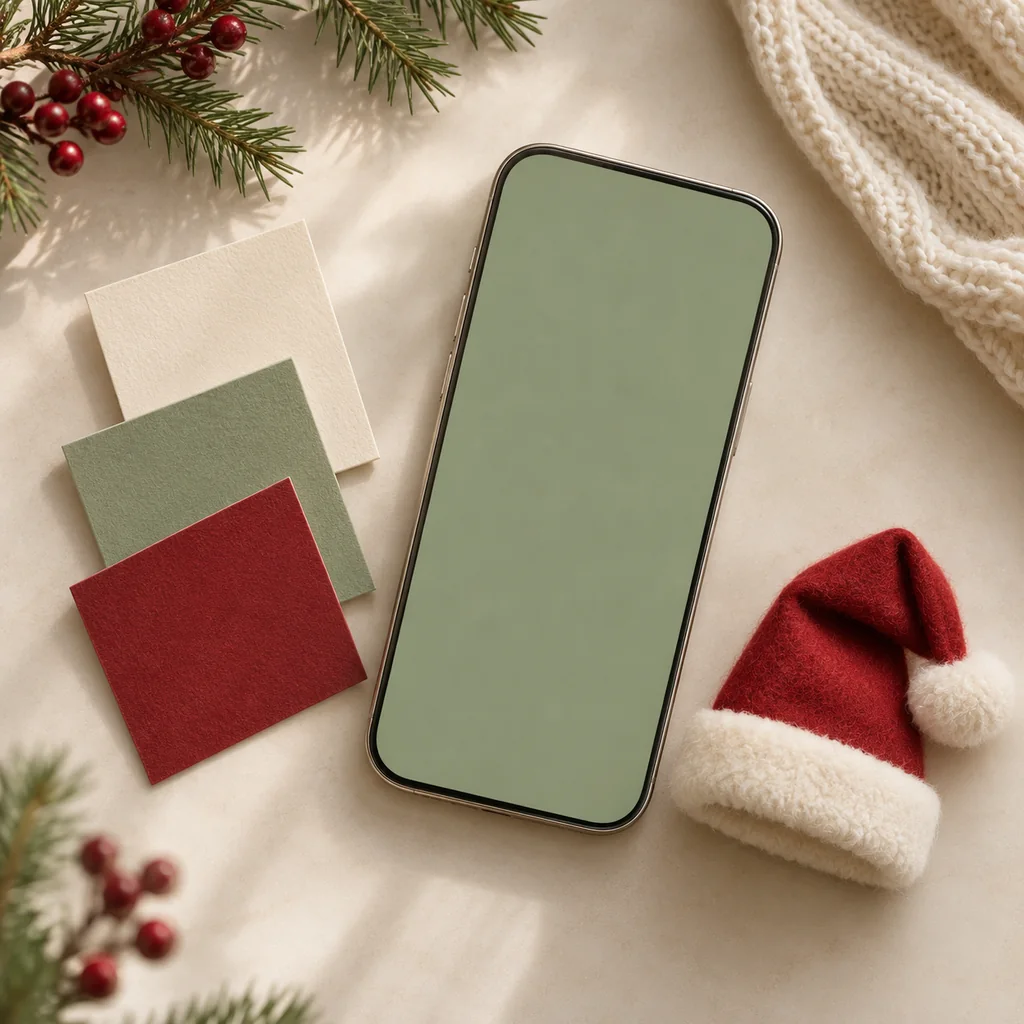
A Christmas profile picture for Instagram has two jobs. It should feel at home beside your posts, and it should still look like you when somebody sees a small comment avatar. A photograph that works beautifully on its own can become a red hat and a dark dot at that second size.
Start with the account you already have. Keep your current picture nearby, choose one festive detail, and compare the new version with your profile before replacing it. We checked Instagram's official desktop instructions on November 17, 2026. The palette study below is original artwork; no account upload or comment-display test was performed for this guide.
Choose the picture for the account you use
Look at your latest nine posts together. You do not need to turn them into a coordinated Christmas grid. Notice the colors that already recur, then decide how much contrast you want from the new avatar.
For a feed with cream interiors and warm clothing, a plain background and a small red hat can carry the seasonal change. If the account is mostly outdoor photographs with cool blue skies, compare a snowy portrait with your current picture. Those are editorial choices, not rules about what Instagram rewards.
Keep a familiar element in both versions. Your glasses, hair shape or the color of a usual sweater can help the comparison. Avoid choosing a new face angle, new hairstyle and unfamiliar illustration style all at once if recognition matters more to you than a dramatic change.
Our simple Christmas PFP ideas guide shows how reducing the number of competing details changes an avatar. Use it when every option looks busy before you have even uploaded one.
Give the avatar its own space
Your profile photo is a separate image from a feed post, Story or Highlight cover. Preparing one does not update the others. Christmas PFP produces a downloadable picture; you choose where to use that file afterward.
Keep the eyes large enough to inspect. Leave space around the hat tip and the sides of the hair, then check a circular preview. A square export can contain every part of the hat while a circle clips the pompom. The circle crop guide explains that difference without relying on one platform's current layout.
Do not draw an imitation Story ring into the photograph. A colored edge becomes part of the uploaded image and may compete with the face. It also cannot perform the function of Instagram's own interface. A clean edge gives you a more useful picture for other accounts too.
Compare the picture with your grid
The diagram uses an invented cream-and-green feed. Both avatar ideas share its background color. One adds a small red accessory; the other places bright decorative shapes around the head. The second carries more seasonal detail, but the accessory and face have less separation in the tiny view.
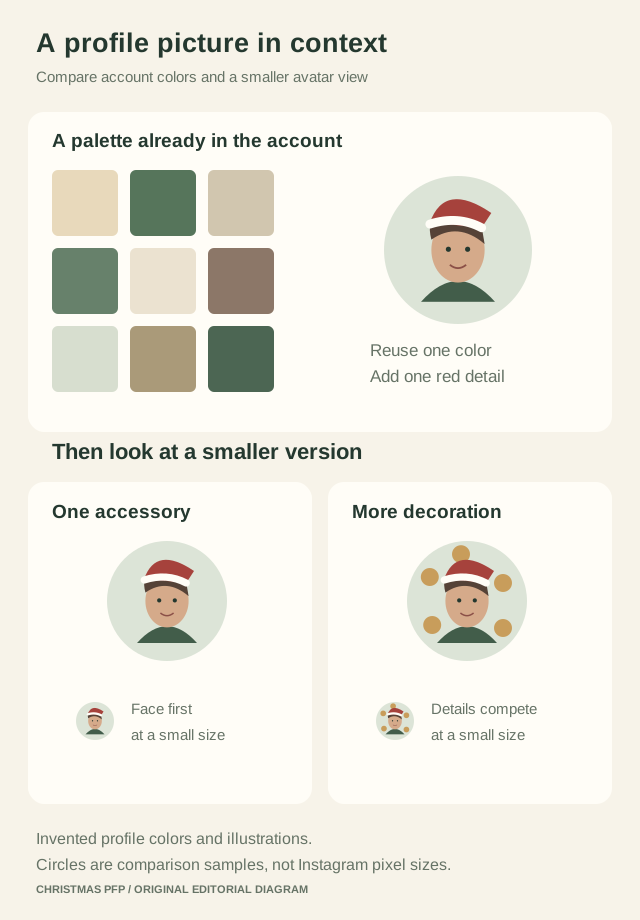
Original design schematic with invented artwork. The small circles are comparison samples, not measured Instagram sizes or captured account screens.
Use the same comparison on your phone. Open your saved picture, return to your profile, and consider whether the new red or blue background overwhelms the surrounding posts. A close color match is optional. What matters is whether you still like the whole profile when the avatar is beside your existing work.
If the background is causing the mismatch, compare the warm lights and snow examples. That guide uses saved results from the same fictional source, making the background change easier to isolate.
Upload through the profile editor
Instagram's current profile-picture help gives this desktop route. Click your profile picture on the left, choose Edit Profile, then Change photo and Upload Photo. Select the downloaded picture and follow the confirmation steps shown by your account.
The same official page describes an alternative through Accounts Center and notes the gradual move to Meta Account settings. Follow the controls in your current account, and check which profile is selected before saving. The desktop instructions above do not establish the menu labels in a particular phone-app version.
Choose the downloaded image from your files. A screenshot of a preview introduces another saved version, often with interface margins or a smaller image area. Keep the original download as a reference if the uploaded result appears soft.
Instagram also says your profile picture is public on and off the service. Choose a photo you are comfortable making visible under that rule. Changing your account's post privacy is a separate decision.
Check a comment as well as the profile page
After saving, return to your profile and inspect the photo there. Then open an existing comment you have made, where available, and look at the avatar beside your name. You do not need to post a new comment simply to test a picture.
At that small size, ask whether you can still distinguish the eyes from the hat brim. Check whether the hair and background have merged into one shape. If the face feels too distant, make a revised crop from the original file instead of repeatedly enlarging an already reduced copy.
Compare the result on the device you normally use. The tiny examples in an article cannot prove how Instagram will render your photo in every interface. When something looks blurry, the profile-photo quality guide helps you separate a source-file problem from a display problem.
Keep a version you can switch back to
Save the ordinary avatar and the festive download in the same folder with different names. A name such as profile-usual.png makes the return file easy to recognize when the holidays are over. Keep your chosen Christmas version separate from unused attempts.
If you still need the picture, open the Christmas studio and choose a style that fits your account. Review your own result before uploading it. The example cards show possible looks, while your source photo and the generated edit determine the picture you will actually use.