Christmas PFP
Backgrounds
Christmas PFP Backgrounds with Warm Lights or Snow
Compare your original scene, warm tree lights and snowy woodland for a Christmas PFP. See saved results from one photo and choose a suitable background.
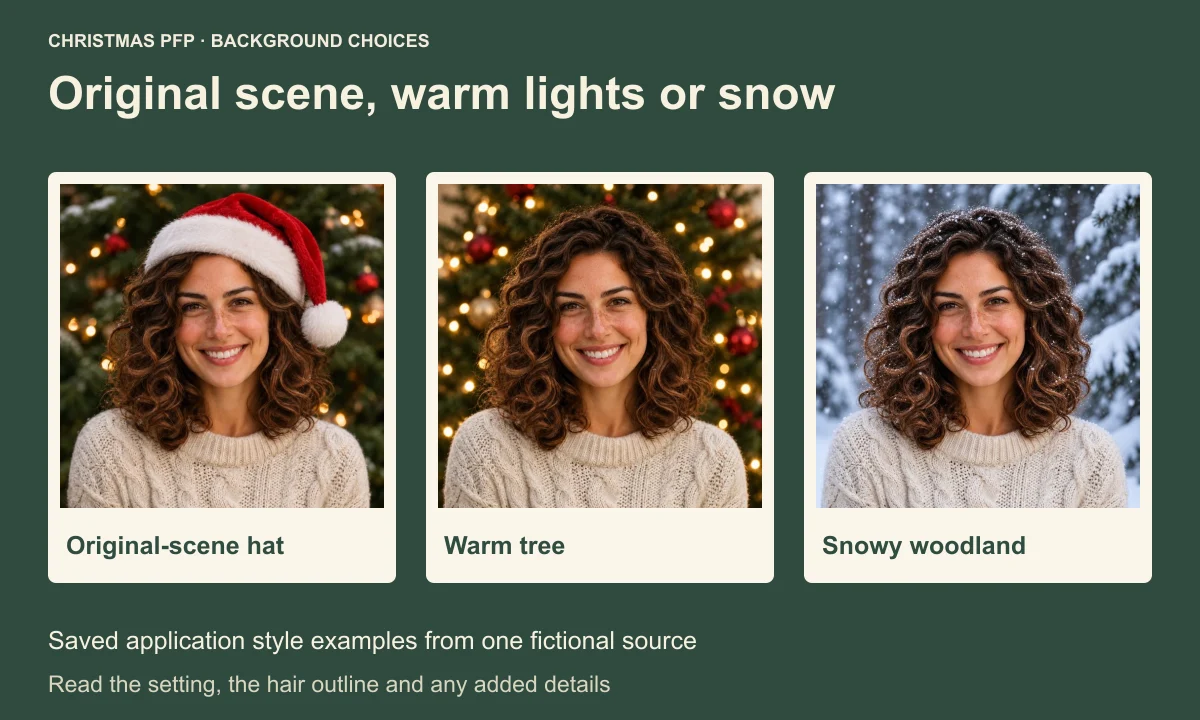
Choose a Christmas PFP background by looking at what your photo already has. You may want to keep a familiar room, put warm tree lights behind your face, or move the portrait into a snowy woodland. Each choice changes what people notice beside your name.
The comparison here uses three saved application style examples generated on November 13, 2026 from one fictional source portrait. We have the source and the separate Santa hat, warm tree and snowy results. Treat them as three complete preset results, including their changes to accessories and other details.
Look at the scene you would be giving up
Our source already contains evergreen branches, red ornaments and small lights. Its cream sweater and broad brown curls give the person a clear outline. A seasonal setting is already present before a new effect is applied.
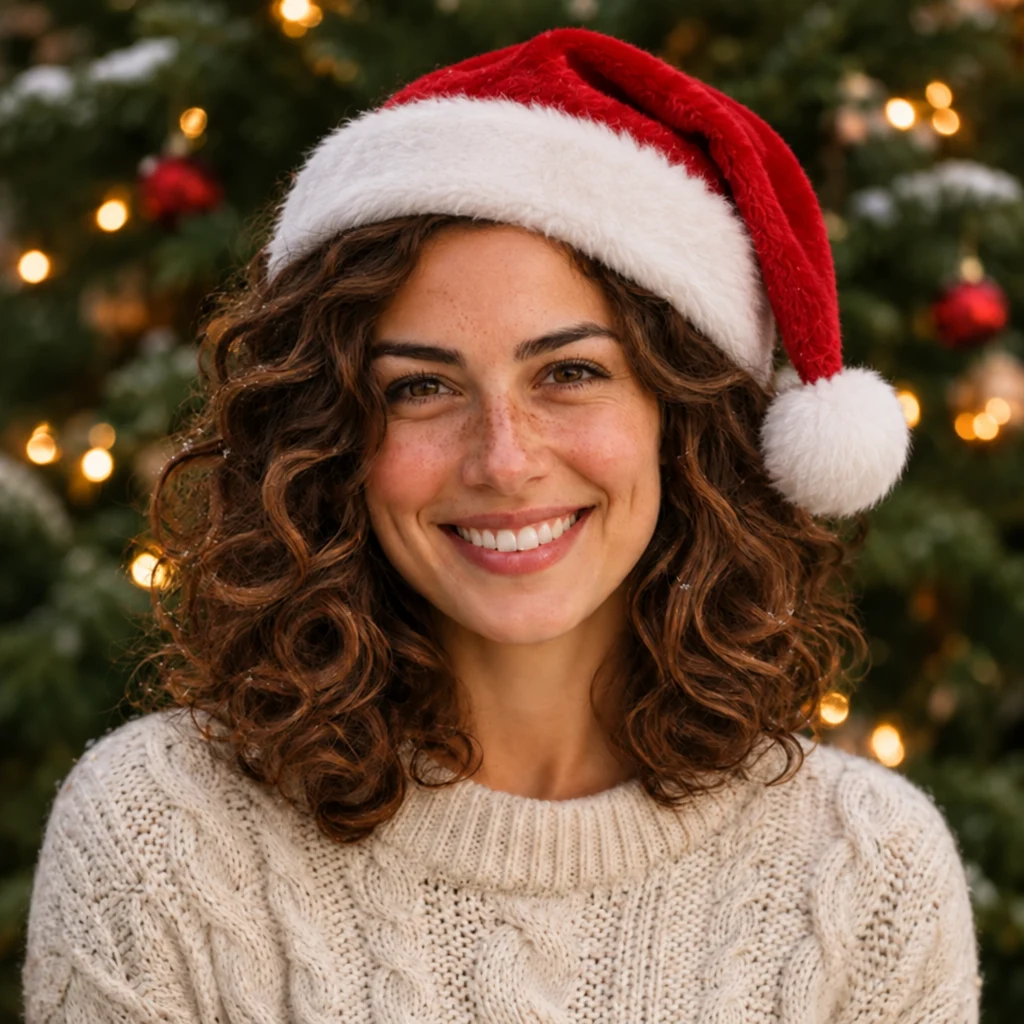
The original-scene option is worth examining first. The saved Santa hat result keeps a similar tree setting and adds a large red-and-white hat. The branches, lighting and individual curls have been reconstructed. You can recognize the same kind of scene without treating it as a guarantee that every original pixel remains untouched.
With your own photo, look for details you would miss if the background changed. A room you decorated yourself may belong in the picture. If you want that room to remain, start with a clear source that already shows it, and compare the result against it before saving.
Compare the three treatments from the same source
Put the pictures beside one another at the same displayed size. Keep the face visible while you compare the surroundings. A larger head or a brighter sweater can otherwise distract you from the background choice.
| Background direction | Saved style example | Visible difference in this set |
|---|---|---|
| Keep a similar original scene | Santa hat | Dark green branches and small warm lights remain, with an added red hat |
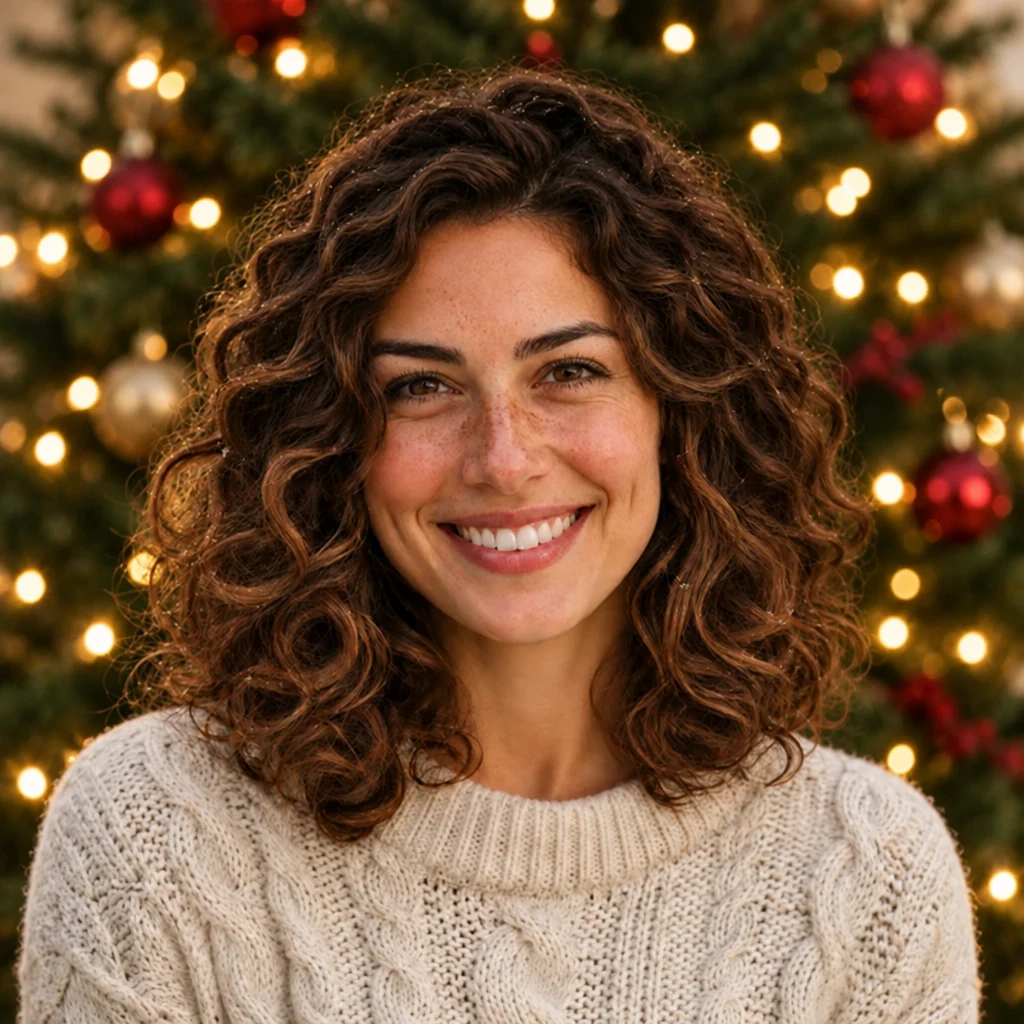
| Make the tree lights more prominent | Warm Christmas tree | More golden light spots and red ornaments surround the uncovered hair |
| Choose a winter setting | Blue snowy woodland | Blue-grey trees, snow behind the shoulders and flakes on the hair |
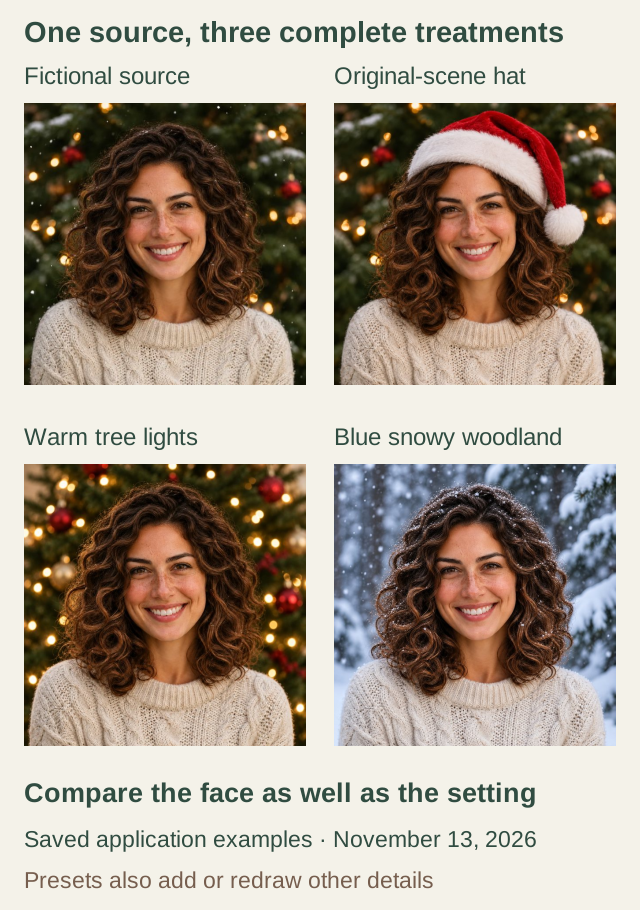
Saved application style examples generated from the same fictional source on November 13, 2026. The presets also add or redraw details beyond the background. No new website generation was used for this article.
The same source gives us a useful reference for all three outputs. It does not make the resulting faces or backgrounds identical. Check each complete image as its own generated picture, including the clothing and anything added near the hair.
You can inspect the complete original-scene hat example, warm tree example and snowy woodland example.
For a broader overview of the available treatments, the Christmas PFP style ideas guide compares the portrait and creative-character options.
Read the warm lights around the face
In the warm tree example, golden circles fill much of the space around the curls. Several red ornaments remain visible, and the cream sweater stands apart from the dark green branches. The picture makes its Christmas setting easy to identify without adding a hat.
Look at the face as well as the bulbs. In this saved output, the smile and freckles are still visible, while the hair edge and skin details need their own comparison with the source. A pleasing glow around the portrait cannot tell you whether an eye or a familiar curl has changed.
Choose a Christmas lights portrait when you want a tree setting to be part of the finished picture. The preset supplies its own treatment of that setting. There is no control here for placing a particular ornament or specifying an exact colour temperature.
Notice what the snowy version adds
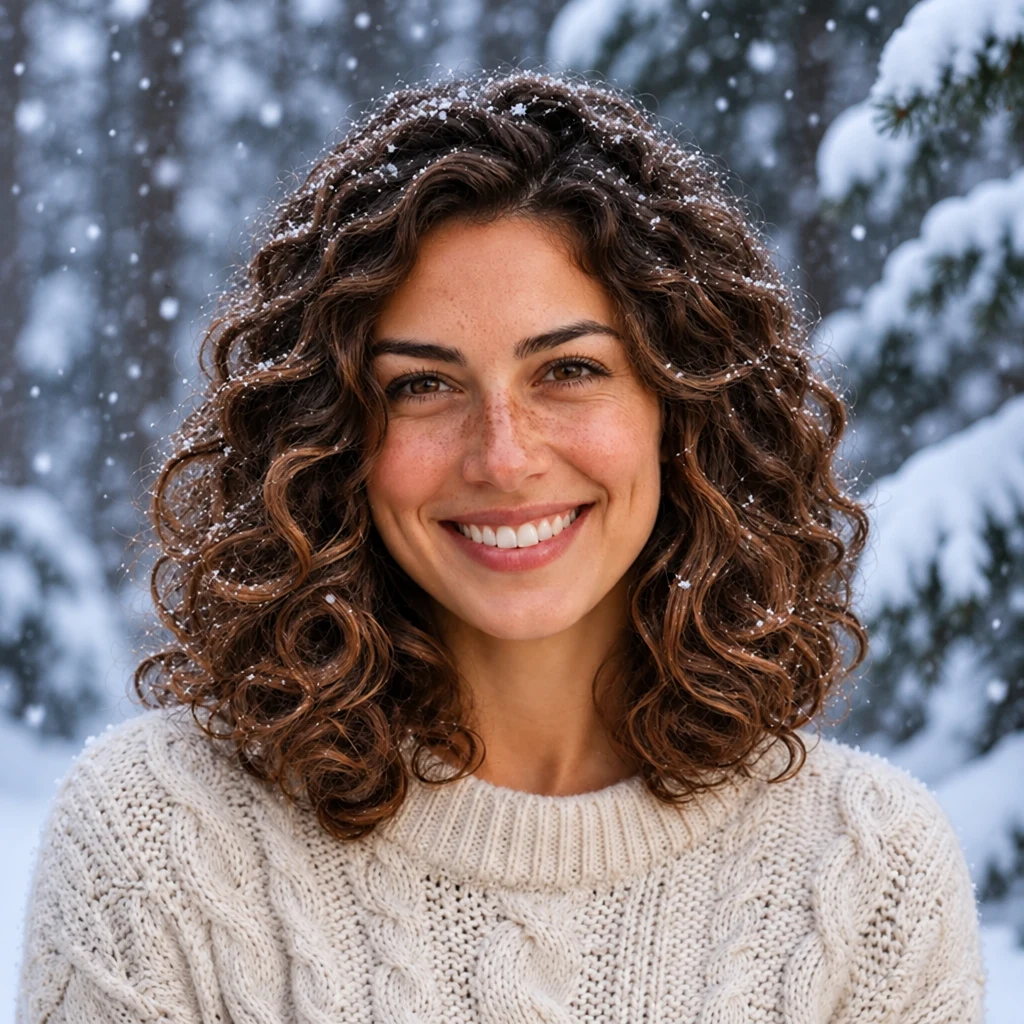
The snowy Christmas PFP replaces the green-and-gold setting with blue-grey woodland. Snowflakes appear across the curls, with lighter snow behind the shoulders. The face remains warmer in colour than the surroundings in this particular result.
Those flakes deserve a close look. Compare the hairline and the parts of the face near bright marks. If a generated patch covers a feature you wanted to keep, decide whether the winter effect is worth that change before using the file.
A Christmas winter PFP can suit a seasonal theme that continues beyond the day itself. Use that idea as a visual preference. The saved example shows one possible woodland treatment, not a choice of real locations or a prediction of what another source will produce.
Compare the outline against both backgrounds
Our subject's brown hair is visible against the lighter blue woodland. The cream sweater has less colour contrast with the snow behind it than with the dark tree in the warm version. That difference is visible even though the same sweater colour appears throughout the set.
For your own portrait, follow the outside of the hair and shoulders. Look at where an edge meets a bright bulb, a dark branch or a pale patch of snow. Check the result at the small size you expect to use, then enlarge it to inspect any uncertain edge.
With a pet photo, make the same comparison around ears, whiskers and distinctive fur markings. A light background may help one part of an animal's outline and make another part harder to separate. Judge the actual result against your own source, especially around familiar markings.
The simple Christmas PFP guide handles crowded composition and small details. Here, keep the comparison focused on how the chosen setting affects the subject you want people to recognize.
Choose the scene for the file you intend to use
Keep the original-scene direction when the setting in your photograph matters to you. Choose warm tree lights when you want that festive glow around the portrait. Pick snowy woodland when you prefer the blue winter treatment and are happy with the added snow details.
In the studio, select your subject before the style. For the warm and snowy portrait treatments, open Holiday portraits and check the active style name. The warm tree link and snowy woodland link select those person-photo options. A pet photo needs the pet subject selected instead.
The studio uses presets rather than a custom background-upload tool. Save the result you like before trying another generation, and keep the source photo for comparison. The complete photo-to-PFP guide covers that workflow.
If the saved file is going into WhatsApp, the Christmas WhatsApp DP guide explains its documented upload route and profile-photo audience controls. Choose the scene first, then check the destination app's final crop and visibility setting.