Christmas PFP
Work profiles
A Professional Christmas Profile Picture with a Subtle Festive Detail
Decide whether a festive work profile photo suits your setting. Compare a small accessory with a new scene, preserve familiar details and keep a normal copy.

A professional Christmas profile picture should still make it easy for the people you work with to recognize you. Whether to use one depends on the account, its audience and your own comfort. Keeping your usual headshot is a complete choice, especially when the account follows a fixed visual policy.
We prefer one festive detail with a familiar face for a work avatar. That is an editorial judgment about appearance. We have no evidence that a Santa hat improves hiring prospects or makes someone seem more professional. The original drawing below lets you compare the visual choices.
Decide which account you are changing
Start with the actual destination. A personal account you use with close colleagues gives you a different decision from an employer-managed directory. Check any existing image guidance before editing a photo for the latter. Having access to an upload button does not tell you whether a seasonal picture fits that account's rules.
Think about who will see the image beyond your immediate team. An avatar can accompany a message without the friendly context of the conversation you had with coworkers. If you would prefer the same face everywhere, a small accessory may be easier to live with than a completely different scene.
You can also keep the ordinary headshot on your main work account and use a festive version on a personal profile. You do not need to change every picture at once. Save a short list of the accounts you actually intend to update so restoring them later stays manageable.
Compare one accessory with a full scene
The illustration uses the same invented person in a dark jacket against a plain background. One copy has no accessory; another adds a compact red hat. The face, clothes and framing are deliberately held constant in this drawing so the accessory is easy to compare.
A third version changes the surrounding colors and adds decorative lights. Our judgment is that the small accessory keeps more attention on the familiar portrait. Someone choosing an informal seasonal account may prefer the fuller setting. There is no professional-appearance score attached to either option.
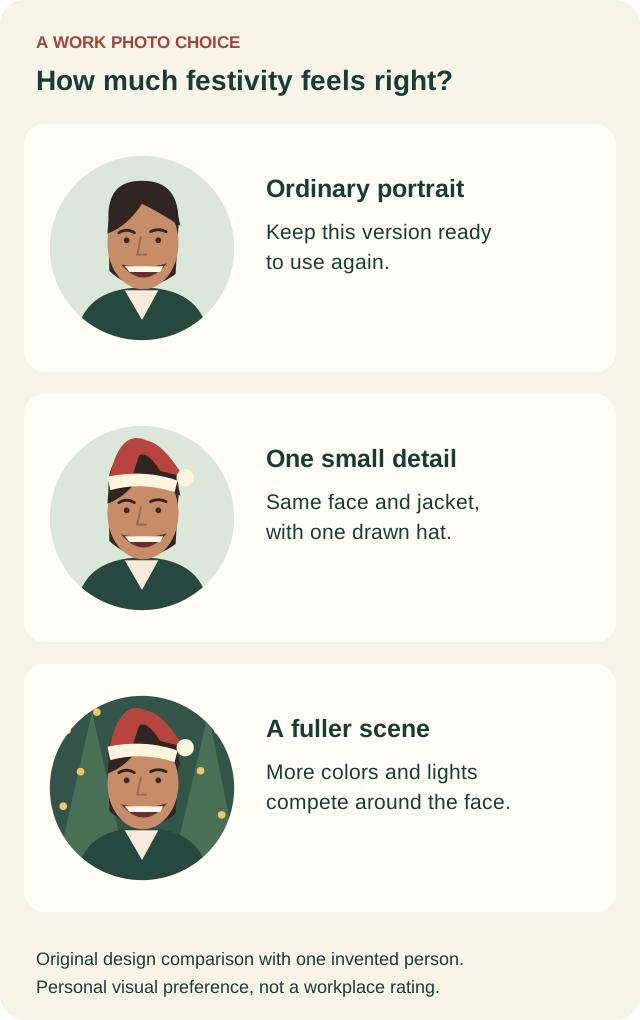
Original design illustration using one invented person. The face is repeated to isolate the visual choice. These are not AI application results or examples of employer-approved headshots.
In Christmas PFP, Santa hat only asks the AI to retain the source background while fitting the accessory. Warm Christmas tree and Blue snowy woodland ask for a different scene. The studio has no slider that guarantees a particular hat size, so choose based on the completed result.
If your source already has a strong background, another festive detail can make the square crowded. The simple Christmas PFP guide helps you judge what occupies the small image before adding more.
Keep the face people already know
Use a recent source that feels like your ordinary work photo. Keep everyday glasses if they are part of how people recognize you. There is no need to replace a suitable expression with an exaggerated smile just because the image will be seasonal.
After generation, compare the face with the original. Look at the hairline and glasses, then the mouth and shape of the cheeks. An accessory edit can redraw details outside the hat. A polished result still needs that comparison, especially if you plan to use it beside your real name.
Check the finished picture at a small display size. The hat should not hide an eyebrow or push the face into a small corner. Keep the familiar name attached to the account, and review the combination of that name and the new photo in the destination app.
The illustration above keeps the underlying drawing identical because it is a controlled design sketch. AI editing does not offer that same guarantee. If you need the photograph underneath to remain unchanged, our sticker versus AI guide explains the separate-layer approach and its different controls.
Use a short personal decision checklist
Before replacing a work profile photo, answer these questions for the specific account you chose.
- Am I allowed to choose this account's image, and does any written guidance affect it?
- Will the familiar face remain easy to recognize next to my name?
- Does the accessory leave the eyes and everyday glasses clear?
- Am I comfortable with this picture appearing beside an ordinary work message?
- Have I kept the original file and decided when to switch back?
An uncertain answer is a reason to keep the usual headshot while you check. You can still make a seasonal image for a personal account. The checklist helps you decide for this particular account.
Save both files before changing anything
Keep the original photo in a folder you can find again. Give the festive copy a different filename, such as alex-work-christmas-2026.png, rather than overwriting the ordinary picture. The name is an organizational example; use your own name and avoid putting private employee details into shared files.
Download the square master and inspect it before uploading. Christmas PFP also offers a circular PNG with transparent corners, but the destination decides how an account picture appears. Review its crop instead of assuming the downloaded shape controls every app.
Set your own restoration date while both files are easy to find. A personal calendar reminder is enough. Changing one account does not necessarily change another, and a festive file does not automatically restore your ordinary avatar after Christmas.
If you also use a photo in email, the email signature guide separates that image from the sender account picture. Treat those as two places to check when you switch back.
For a small seasonal edit, open Santa hat only. A person generation costs 5 credits; requesting another successful version costs another 5. Downloading or adjusting the crop of the same result adds no generation charge. Keep the ordinary headshot available, whether you publish the festive one or decide it suits a different account better.