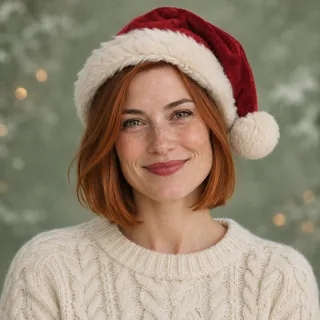
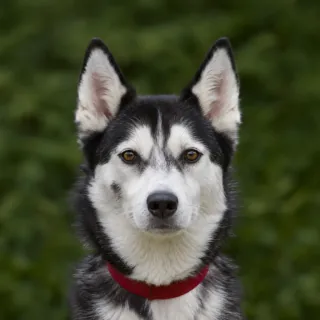
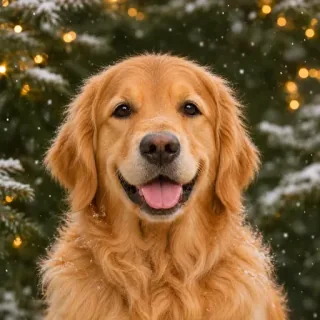
Christmas PFP
Owner and pet
Matching Christmas PFPs for You and Your Pet
Make separate matching Christmas avatars for you and your pet. Compare head position, festive details and recognizable features before uploading both pictures.
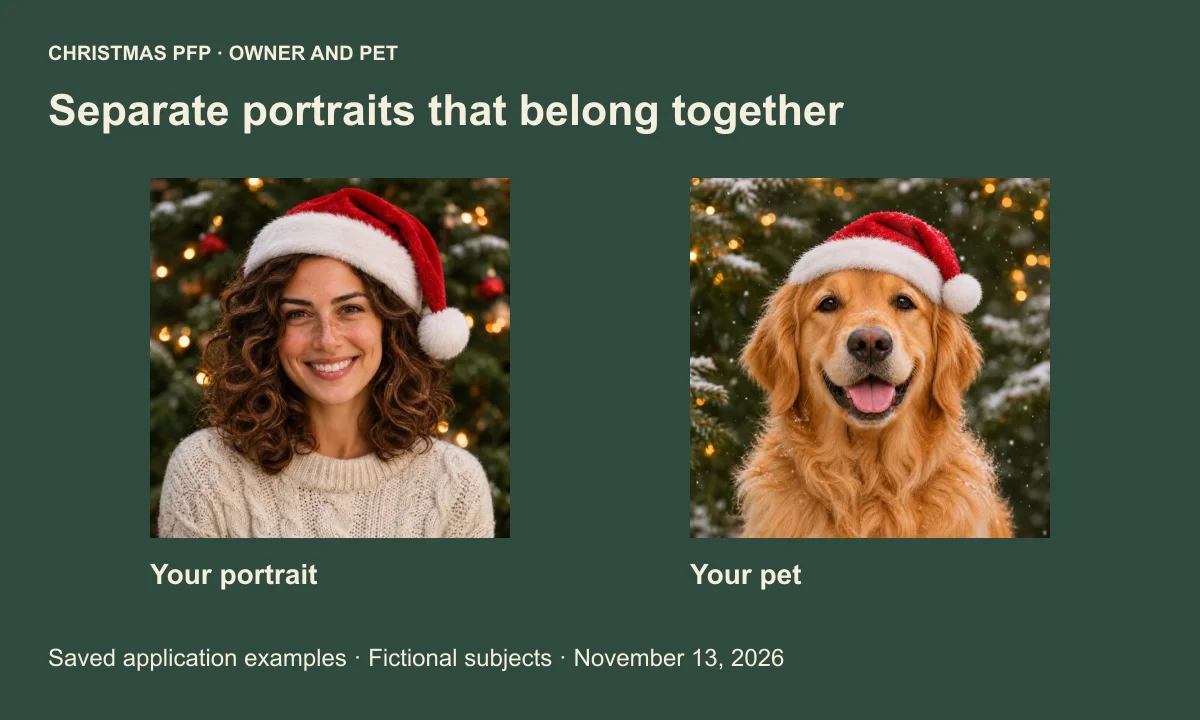
Matching Christmas PFPs for you and your pet work well as two separate pictures with a clear visual connection. Give each face enough room, choose a festive detail that suits both heads, and check the person and animal against their own original photos.
We compared two saved application outputs for this guide, using a fictional adult portrait and a fictional golden retriever. Both were generated on November 13, 2026. Their red Santa hats connect the independent avatars, though the dog's hat is broader than the miniature hat requested. That difference deserves a look before copying the pair's appearance.
Make one avatar for each account
Prepare one photo of yourself and one photo of your pet. Select Just me for the person, then make a separate image with My pet selected. You will have two files to upload to two accounts.
This workflow does not combine the uploads into a portrait of you holding your pet. There is also no automatic paired template that makes the hat folds or backgrounds identical. Each image should look complete by itself, even when the other avatar is absent from a chat.
The Christmas pet PFP maker opens with My pet selected. If you are coordinating two people instead, the matching couple avatar guide covers the two-portrait workflow.
Compare head shapes before choosing a crop
Start with the two source photos at equal display sizes. A close human portrait and a full-body dog photo put very different amounts of face into the same small circle. Try a head-and-upper-chest pet photo so the eyes and muzzle remain readable next to your face.
Human hair and animal ears occupy different parts of the square. For a cat, the pointed ears may be the highest part of the head. A floppy-eared dog needs room beside its cheeks. Leave space for these features before allowing for a hat above them.
Use eye height as a rough comparison point. Similar eye levels make the pair easier to compare, but a dog's muzzle does not need to end where a person's chin ends. Look for a comfortable amount of head in each image without forcing the two silhouettes into the same outline.
Keep both source photos reasonably close in angle. A straight-on face and a pet photographed steeply from above are harder to balance. Adjust the studio framing before generating, then check that the pet's nose and ears remain visible in the circle preview.
Choose a detail that works on both heads
Santa hat only offers a clear shared direction. With Just me selected, it asks for a standard red hat. With My pet, the direction uses a miniature hat and leaves room for ears. Both aim to retain the existing background, so start with source photos whose lighting already looks compatible.
You can select a shared scene style instead. Warm Christmas tree asks for a warm setting, while Blue snowy woodland uses cooler winter light. Those scene styles currently ask for no new hat. Choose the look you want before spending credits on the two generations.
The same visible style can produce different details for each subject. A small pet hat and a human hat have different proportions, and separate images may have different shadows or backgrounds. Compare the actual results before deciding whether they belong together.
Study the two saved results
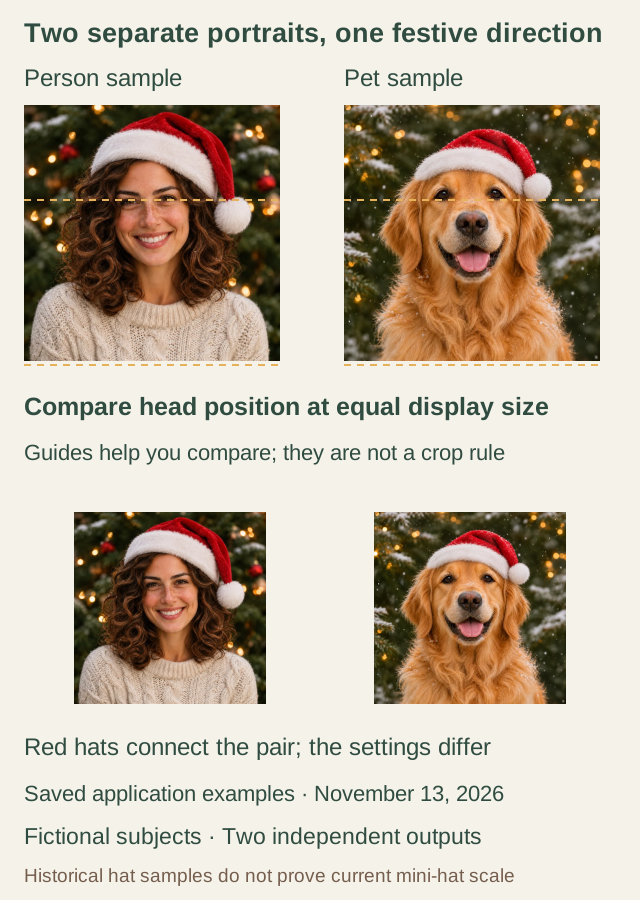
Saved application outputs from November 13, 2026, using fictional source subjects. The images were generated separately. Annotations are comparison guides, not measured head-size targets or promised accessory placement.
In this pair, the cream sweater and golden fur sit against green trees with warm lights. The hats provide the shared red-and-white detail. The woman's curled hair spreads out beside her face, while the retriever's long ears hang beside its muzzle. Those shapes need their own space.
The dog's eyes sit higher within its square than the woman's. Compare that difference with the outer head shapes before deciding whether to adjust either crop. The guides mark places to compare. They do not prescribe one eye line for every animal.
The archived dog sample has a broad hat, despite the request for a miniature one. You may like its appearance, but check whether a similar brim would hide your own pet's ears. Shared colors alone cannot tell you whether the accessory fits well.
Approve each image on its own
Check your portrait against the human source. Look at the hairline, expression and any glasses. Decide whether you recognize the person before comparing the picture with the pet's avatar.
Then compare the animal with its original. Fur patches and ear shape often make a pet recognizable. Check that the eyes and nose have kept their shape, and that a hat has not hidden an ear or changed the outline of the head.
For a matching cat and owner PFP, the cat ear and whisker guide adds a closer inspection of fine whiskers. For matching dog and owner profile pictures, the dog ear guide compares upright and floppy ear silhouettes.
Switch both results to the circle preview at the same display size. Check the whole accessory inside the edge as well as both faces. You can adjust the result crop and download again without requesting a new generation.
Allow 10 credits for the pair
One portrait or pet generation costs 5 credits. Two successful images use 10 credits. If you keep both and deliberately generate another successful option, the total becomes 15 credits. Changing a crop or downloading the same result again does not create another generation.
A confirmed technical failure returns the credits charged for that attempt. If the status is still being checked, look in your recent pictures before starting another request. Choosing a different version after a completed result is a new generation, and uses another 5 credits.
Download each file separately and keep the square originals. You can also save a circular PNG with transparent corners. When you set the two account pictures, compare their crops in the actual app and make sure each avatar remains readable alone.
If the file looks sharp before upload but becomes soft on the account, the blurry profile picture guide helps trace where that change happened. Keep the downloaded original available for that comparison.
Open the studio with one person photo and one pet photo ready.