Christmas PFP
TikTok
Christmas PFP for TikTok Upload and Crop Guide
Make a Christmas PFP for TikTok, save a square copy and follow TikTok's documented photo-upload route. Check your profile and small avatar view.
Save your Christmas TikTok profile picture to your phone before opening the app's profile settings. That keeps the file you want within reach when the photo picker opens and gives you a chance to check the hat and face at a useful size first.
We checked TikTok's current Help Center instructions on November 14, 2026. The upload route below follows that documentation; wording can vary with your installed app and account. This guide concerns a static Christmas PFP for TikTok, the account picture people see beside your name. Video covers and pictures inside posts are separate choices.
Choose a picture that still looks like your account
Start with a portrait whose expression you want to keep. A simple red hat can be enough to mark the season while leaving your usual clothes and setting familiar. A festive portrait scene changes more of the picture, so compare the result with your source photograph before deciding it represents you well.
The Christmas PFP ideas guide compares the current looks, including photographic and illustrated treatments. Choose one direction before generating. Keep a copy of the version you like before trying another treatment, so you can compare the expression and framing side by side.
For a pet account, the dog ear-shape guide compares the headroom upright ears need with the space hanging ears use beside the cheeks. Choose that source framing before deciding how festive the picture should be.
Keep fine lettering out of the main decision. Open the picture at a smaller size and look for the feature you use to recognize it, such as the face shape or a distinctive pair of glasses. If the face is already hard to pick out, a decorative holiday message will add another small element to read.
Keep a square master on your phone
Download the full square PNG from the Christmas PFP studio and keep it with the original photo. The studio also offers a circle PNG with transparent corners. A square master gives you the complete frame if you need to choose a different crop later.
Before uploading, open the saved file itself. Check that it is the finished picture you selected rather than an earlier attempt or a screenshot of the editing page. If you made several versions, give the chosen file a name you can recognize in your photo library or file picker.
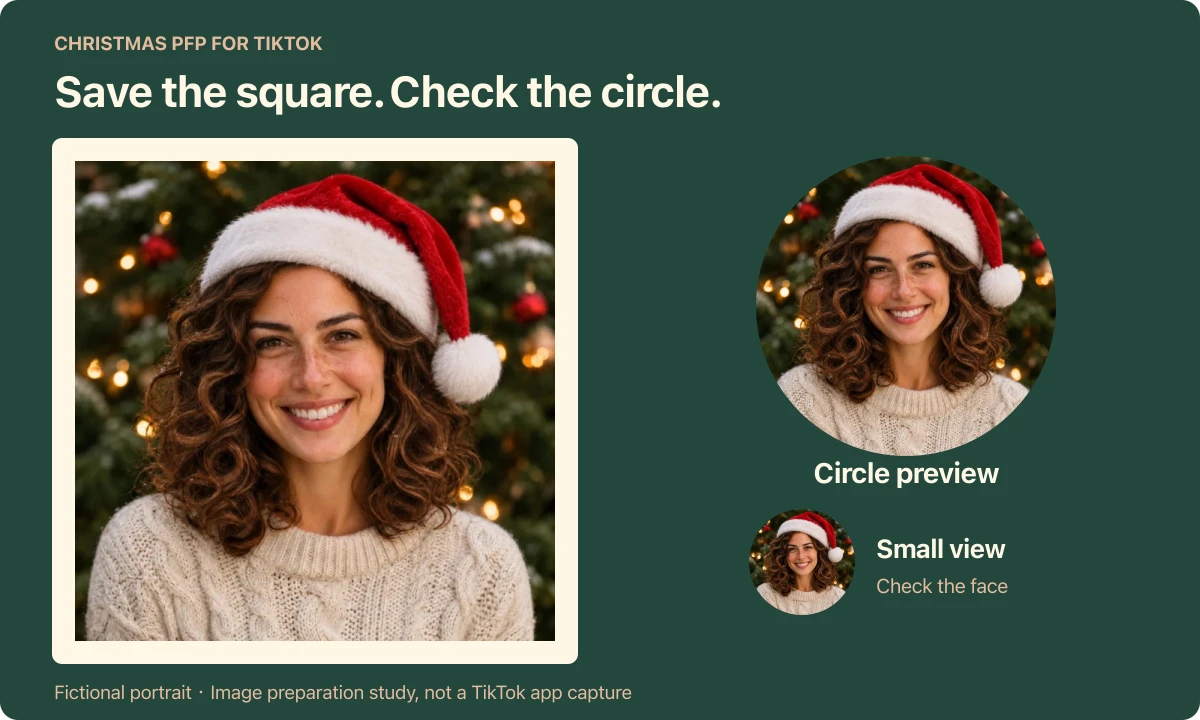
Switch to the studio's Circle preview to inspect the outer edges. A Santa hat's pompom and a pet's ear tips can fit in the square while falling outside that round view. The circle crop guide shows that geometry with the same drawing under two different masks.
That preview helps you prepare the image. Check TikTok's own crop before saving, since the destination app controls the account picture it displays.
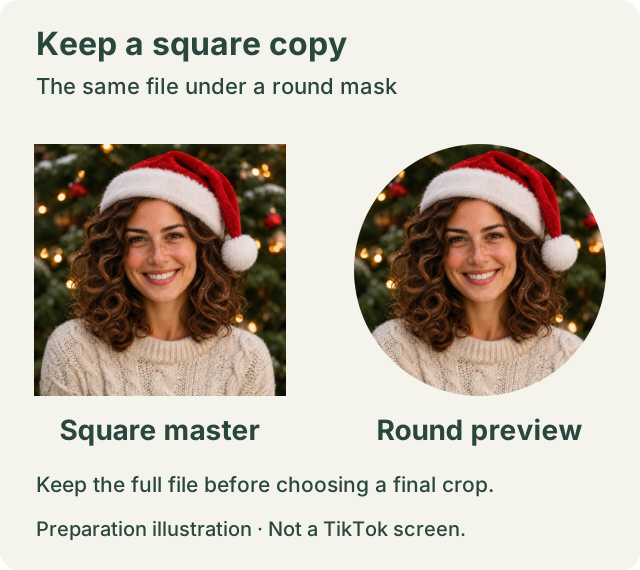
One fictional portrait with the same framing. This image-preparation study shows a square and a circular mask, not a TikTok interface screenshot.
Follow TikTok's documented photo upload route
In the mobile app, open Profile and choose Edit profile. TikTok's help article then directs you to Change photo. For an image already saved on your device, choose Upload photo; Take photo starts from a new camera picture.
Select the finished Christmas avatar and inspect the crop screen. Keep the face inside the visible frame and check the entire hat. Use the available adjustment controls to position the image, then choose Save when the preview shows the picture you want.
TikTok's photo-upload help is the source for this sequence. If a control is missing, check the options shown in your own account. An older screenshot can describe a different version of the app.
Look at the profile after saving
Return to your profile and examine the account picture there. Compare the displayed face size with the crop you approved. Check whether the hat still reads as a hat and whether the pompom has become an unhelpful pale patch against the edge.
If you already have a comment visible on a post, check the picture beside that comment as well. A small avatar gives you a useful second view of how the face and accessory read together. You can use an existing comment for this check without publishing a new one.
Keep the older avatar file if you may want to switch back after Christmas. Saving that copy now is easier than trying to recover a compressed picture from a profile page later.
Check what failed before changing the picture again
If the selected image never appears in the picker, first confirm that the file has finished saving and opens normally on your phone. Look at which photos the app is allowed to access when the picker gives an access prompt. Choose the access needed for the picture you want to use.
If the crop screen appears but the change will not save, record the exact message and the point where it appears. Selection and saving are separate steps, so check whether the change actually reaches your profile. Keep your square master while you check the app's current support options.
If saving appears to finish but the old avatar remains, revisit the profile before uploading repeatedly. Note whether the problem affects the profile view, the smaller comment view or both. Include that distinction, the exact message and your app version if you contact TikTok support.
TikTok's help page also notes that a set profile video can hide a profile photo. Check the account controls you actually have if that applies to you. This article does not assume every account offers the same video option.
Make the static picture you want to upload
Portrait and pet generations in Christmas PFP cost 5 credits each. The one-time pack supplies 100 credits for $5.99, with applicable tax shown at checkout. Choosing between square and circle downloads of the same result uses no extra generation.
Make a Christmas profile picture, save the square master and review TikTok's final crop before you confirm the change.