Christmas PFP
Discord
Discord Christmas PFP: Crop, Size & Upload Guide
Make a static Christmas PFP for Discord, check the circle crop and small chat view, and follow the desktop or mobile steps to update your avatar.
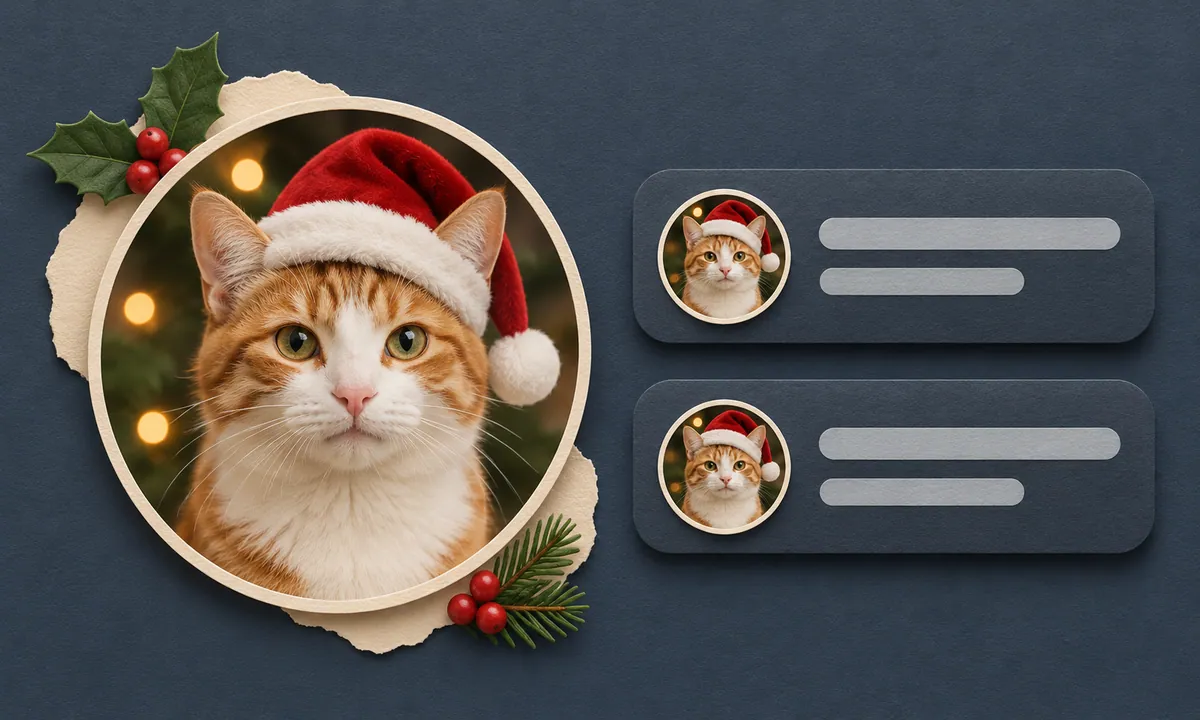
A Christmas PFP for Discord has to stay recognizable beside a message. A portrait can look clear at full size, then lose its expression in a small circle. Give the face and the Santa hat enough room before adding more decoration.
The settings paths below follow Discord's current profile guidance. The size comparison is an illustration using one of our AI-created style examples, so you can inspect what survives at a smaller scale. It is not a screenshot of a Discord account.
Choose a static avatar, GIF or decoration
Your personal avatar is the picture attached to your account. A server icon represents the whole community in the server list, while a profile banner fills a separate area of the profile. Upload your Christmas portrait to the avatar field.
| What you want | What changes | What to use |
|---|---|---|
| Static Christmas avatar | Your still profile picture | A square PNG prepared from your photo |
| Animated avatar | The avatar image moves | A GIF and a Discord plan that supports animated avatars |
| Avatar decoration | A separate cosmetic around your avatar | A decoration available to your account in Discord |
| Christmas server icon | The community's icon | A separate server setting, with the appropriate permission |
Discord lists animated avatars among its Nitro profile features. A standard static account avatar does not require Nitro. Christmas PFP makes static images; downloading one will not produce an animated GIF or unlock a Discord cosmetic.
Decorations have their own collection and controls. Discord's decoration FAQ explains that purchased decorations can be used without an active Nitro subscription, with exceptions for some Nitro-exclusive items. You can change the underlying portrait without buying a decoration.
Check a Christmas Discord profile picture at chat size

Scale illustration using an AI-created style example. The 128, 40 and 32 pixel samples are comparison sizes, not official Discord dimensions or screenshots.
Use the comparison as a small-image check. The larger circle gives you room to inspect the face and hat placement. In the small samples, look for the expression and red hat first. Fine snowflakes and individual fairy lights become harder to pick out.
For a simple Discord holiday PFP, start with a clear face and one festive detail. Santa hat only keeps the existing scene as its goal. A softly lit headshot or a pet portrait with visible ears gives you something recognizable before the hat is added.
Warm lights or a cartoon treatment can work too. Compare the nine Christmas avatar ideas if you want a stronger change of scene. Choose a background that leaves the face distinct when the picture is small, then check the result against your original photo. AI can alter facial details and pet markings.
Keep the brim above the eyes. Leave space around the pompom, antler tips or ears so the circle does not cut them off. A tiny holiday slogan adds another thing to decipher; a clear expression usually gives friends more to recognize.
The circle crop safe area guide shows three examples of details that fit in a square and disappear under a round mask. Check those edges before uploading to Discord.
Prepare the file before uploading
Keep a copy of the full square download. The studio's Circle option downloads a PNG with transparent corners. Choose Square if you want Discord to apply its own crop to the full image. Start with that original file rather than a screenshot of the preview.
Use PNG for the steps below. If your saved file is another format, export a PNG copy with an image editor; changing the filename extension does not convert it. Keep the original in case you need to adjust the framing later.
Christmas PFP generation requires an account and costs 5 credits per image. The one-time credit pack is $5.99 for 100 credits, before applicable tax. For source-photo and download instructions, use the complete Christmas PFP guide.
Change your Discord avatar on desktop or mobile
Desktop and browser
Open User Settings using the cogwheel at the lower left, then choose Profiles. Select Change Avatar, or select your current avatar, and upload your PNG. Adjust the available crop, choose Apply, then Save Changes.
Choose your main user profile when you want this to be your usual avatar. Keep server-specific changes for communities where you want a different picture.
iPhone and Android
Tap your avatar at the bottom right of Discord, then Edit Profile. Select the avatar image and choose your saved picture. Review the crop and confirm with the available Apply and Save controls. Labels can vary slightly with app version and language.
These routes come from Discord's Custom Profiles instructions. Follow the avatar controls if your layout differs, rather than uploading the image as a banner.
Inspect the saved picture in two places
First, reopen your profile after saving. Check that the selected photo is the one you intended, the hat is fully visible and your face still looks familiar. Close the editor so you are judging the saved profile rather than an unsaved preview.
Next, look beside an existing message of yours in a text channel, or find yourself in the server's member list. You do not need to send a new message for this check. Notice whether the face remains distinct against the surrounding interface and whether the circular crop hides the festive detail you chose.
If one server still shows an older picture, check for a server-specific avatar. Discord's per-server profile guidance explains that these Nitro profiles can use a different image while leaving the main user profile unchanged. Confirm which profile you edited before replacing the same file again.
If the crop feels cramped, return to the square original and allow more space around the head before uploading again. For a pet, compare the ear tips and muzzle as well as the hat. Keep the square file so you can use it again when switching back after the holidays.
Choose a Christmas style with a photo you already like, then bring the finished square picture back to Discord.
Making a coordinated set for your chat? The matching Christmas PFP friends guide compares three separate portraits and shows each member at small avatar sizes.